
Appearance
Custom Collision Mesh
Note
This feature is only available in scenes created using "Walk (Interior)" mode.
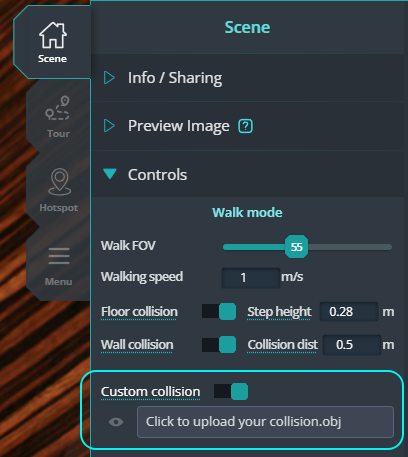
When should you use this feature?
Use it when users cannot walk onto floor surfaces included in the Collision Mesh file created in Step 1.
This usually means that the floor surfaces are not connected. Create a new Collision Mesh file, ensure that all floor surfaces are connected.
How to use Custom Collision
1. Creating the Collision Mesh
To create a collision mesh, simply select the objects below and export them as a .obj file.
Open the software containing your 3D model (Sketchup, 3ds Max,...) and select the following objects:
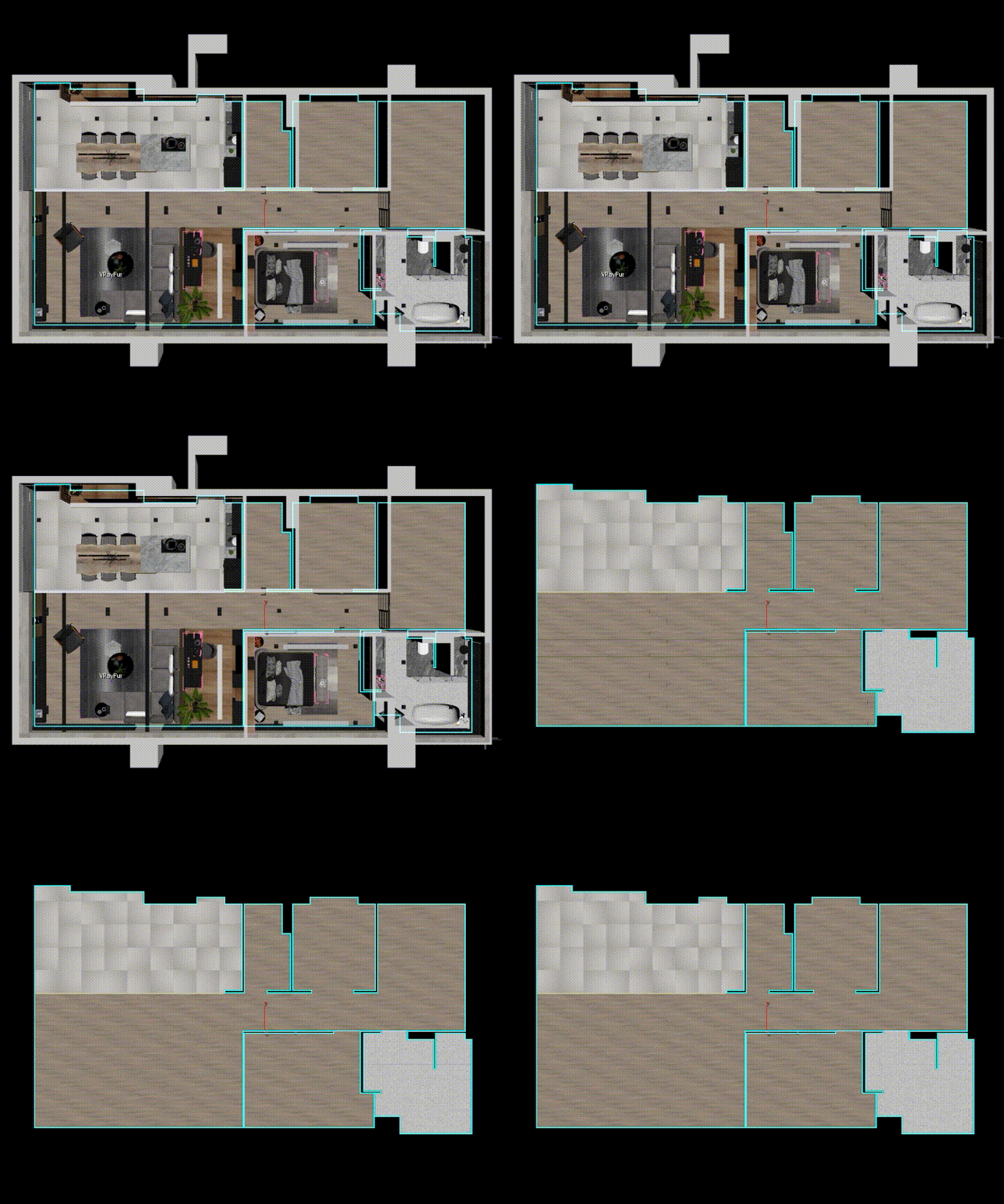
Select only the floor surfaces where you want users to be able to walk.
( Note: The selected floor surfaces define the walkable area in the viewer. )Details
Avoid selecting floor surfaces in unused areas, such as empty rooms.
✅ Doplace it with a simple shape, such as aSelect floor surfaces only in areas where you want users to be able to walk.
 ❌ Don't
Don’t select floor surfaces in empty rooms or areas that you don’t want users to enter.
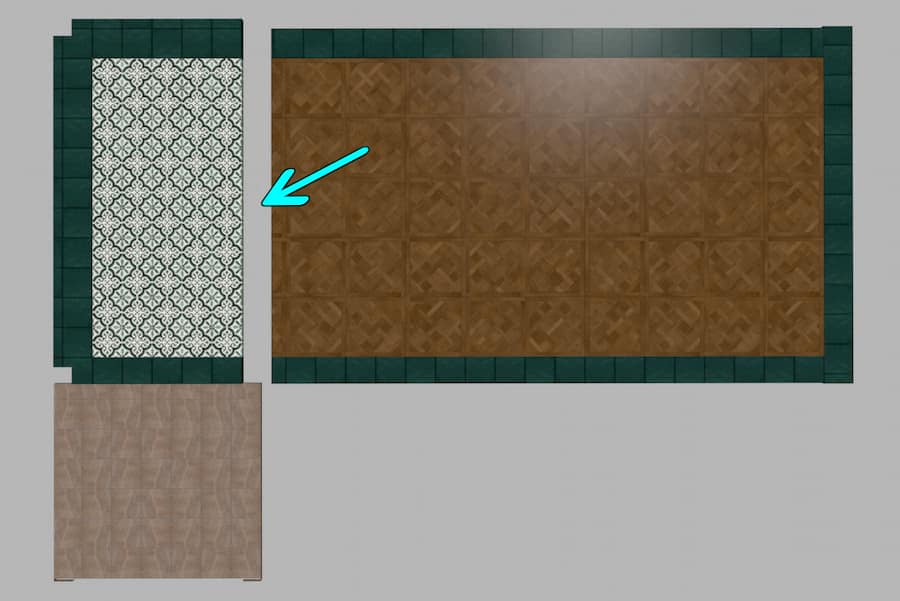
Make sure all walkable floor surfaces are connected to each other.
If two walkable areas are separated by a gap or are not connected, users will not be able to move from one area to the other.✅ DoConnected floor surfaces
 ❌ Don't
Disconnected floor surfaces
Select all walls.
Select large objects that obstruct movement at eye level (approximately 1.6 m), such as cabinets, shelves, partitions, wardrobes, curtains and refrigerators. ( This prevents users from walking through them in the viewer. )
Select stairs only if you want users to be able to go up and down the stairs.
Do not select any ceilings, including the top-floor ceiling.
Note
- Leave doors open whenever possible so users know they can enter the space behind them.
- If you prefer to keep a door closed while still allowing users to pass through it (for example, a glass shower door, a balcony door or a door between two rooms), simply don't select that door for the Collision Mesh.
The video below demonstrates which objects should be selected and exported as the Collision Mesh:
2. Setting export OBJ
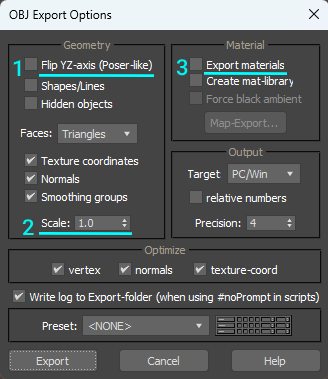
Export the selected objects as an .obj file with the following settings:
For 3ds Max
- Disable "Flip YZ-axis".
- Set Scale = 1.0
- Disable "Export materials".
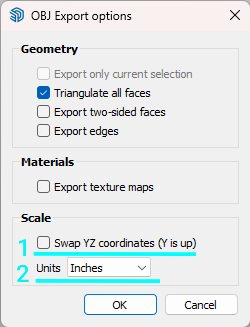
For Sketchup
- Uncheck "Swap YZ coordinates".
- Set units to Inches.
3. Upload your file to this field
Collision File Over 10 MB
The maximum upload size for a Collision Mesh file is 10 MB.
Since the collision mesh only needs to define walkable surfaces and objects that block the user's path, try the following to reduce the file size:
- Delete decorative objects and small details that do not define a walkable surface or block the user's path, such as clothes inside wardrobes or decorative items on shelves.
- If an object has a high-poly mesh, replace it with a simple shape, such as a box or cylinder. Make sure the replacement shape roughly matches the original object’s overall size.